| Sign Up For Our Newsletter |

| Sign Up For Our Newsletter |
Creating New Users in OS X
creating a new user | creating a limited user | creating a Spanish user
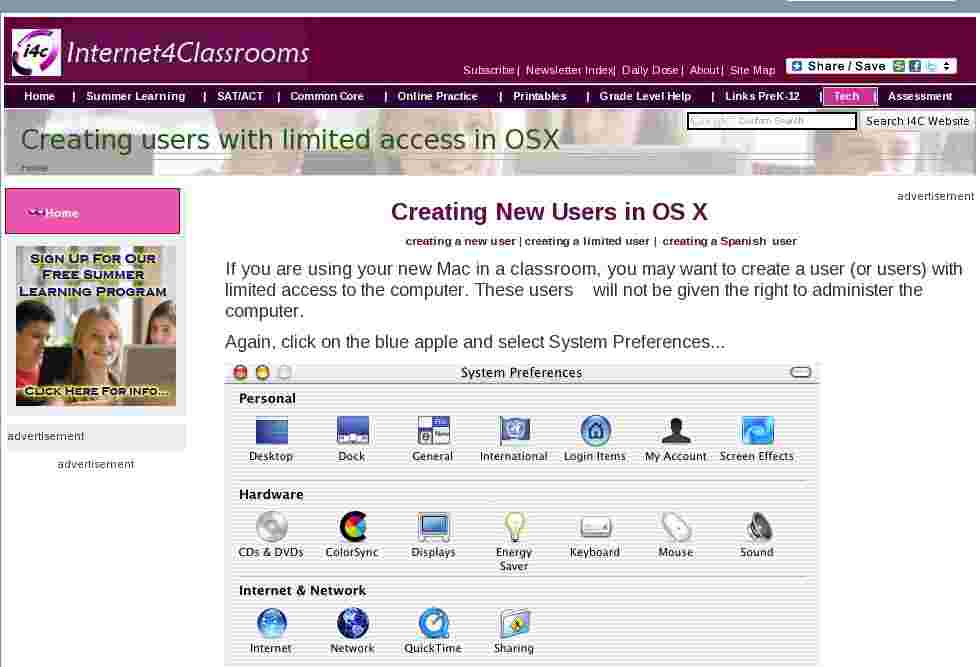
If you are using your new Mac in a classroom, you may want to create a user (or users) with limited access to the computer. These users will not be given the right to administer the computer.
Again, click on the blue apple and select System Preferences...
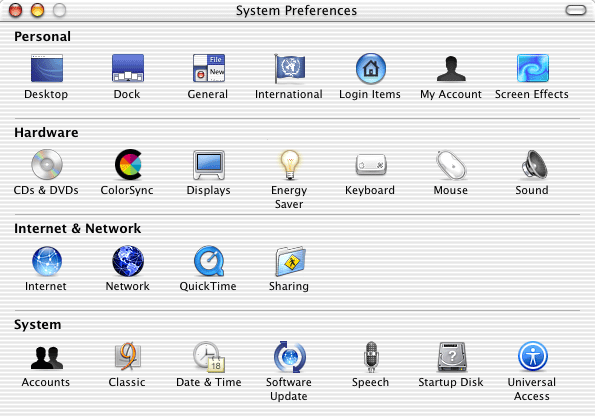
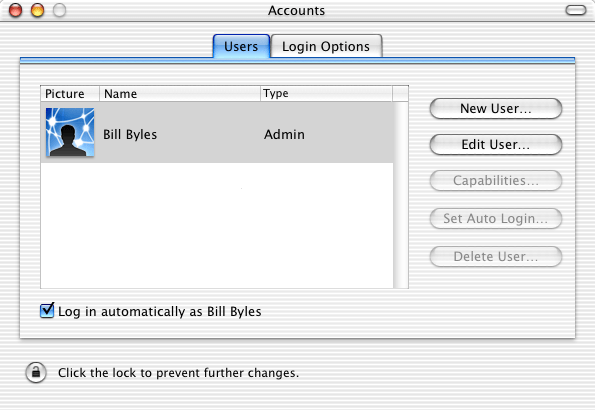
Select Accounts (in the bottom row of preferences), then select New User ...
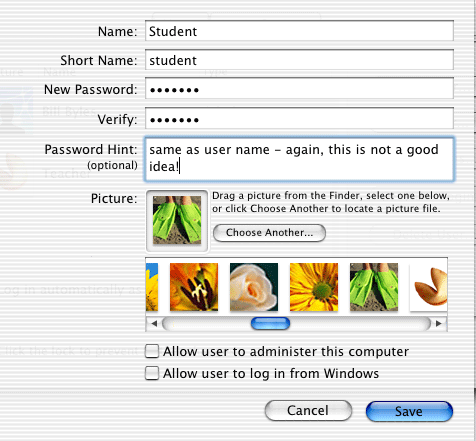
Give the New User a name. If you use the Tab key to move to the next field, the short name is created from the name. Modify the name if you wish. Decide on a password (and remember it) and select an image to represent the user. I selected the feet wearing frogman flippers, any idea why ?
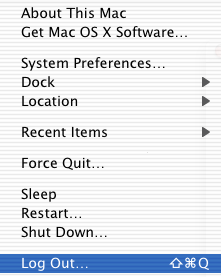
To log in as the new user, you must first log out, just as you did when creating the user, "Teacher."
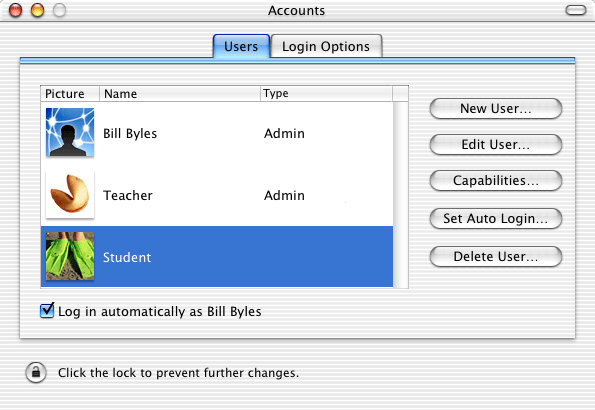
Log in as Teacher or as your default log in. Either one should have permission to administer the computer. With the user "Student" selected, click on Capabilities...
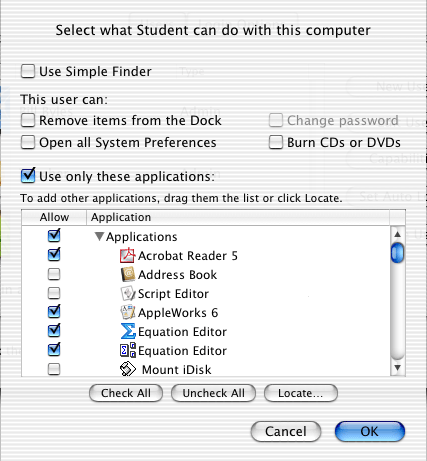
You decide what you want to give the student access to. I decided to allow the student to only use certain applications. You click one time on the right pointing arrow to the left of the word Applications to get a list of available applications. Select, or deselect, those you wish to make available to this user.
Log out to begin the process again. Next we are going to create a very special user.
Search Internet4Classrooms
 Custom Search
Internet4classrooms is a collaborative effort by Susan Brooks and Bill Byles.


advertisement
advertisement

- Site Map |
- About Us |
- Teacher Training |
- Make Internet4Classrooms.com your home page. |
- Copyright © 2000-2024 Internet4Classrooms, LLC All rights reserved.
Use of this Web site constitutes acceptance of our Terms of Service and Privacy Policy.
1694708746714065 US 1 desktop not tablet not iPad device-width