| Sign Up For Our Newsletter |

| Sign Up For Our Newsletter |

Using MS Equation
Some Math or Science teachers are in the habit of leaving empty spaces as they prepare work for their classes. After printing one copy, they will go back to the empty spaces and hand draw the mathematic or scientific symbols needed before printing a class set of the assignments or tests.If that's you, that can be a thing of the past. Get ready to use Microsoft Equation! ( Note : These directions are specific to MS Word, but MS Equation works exactly the same in PowerPoint)
To start this lesson, I went to a search engine and did a search for "complicated algebraic equation." This was not typed (on the web page), it was inserted on the page as an image.

That's complicated enough to start with.
Open MS Word. If you are ready to begin typing the equation go to the Insert Menu and select Object. In the Object window that pops up, scroll down to find Microsoft Equation. If it is not there, bookmark this lesson, go find the person in charge of installing software, and ask them to install the components of MS Office that they elected not to install originally. It is on the CD.
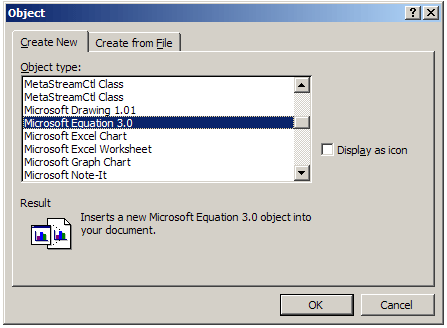
Select the OK button and two things appear; a work area (outlined in dashed lines) and the equation toolbar. Each section of the toolbar has pull down menus to allow you to select exactly what you need. You will return to the toolbar several times before finishing a complicated equation. Work cautiously. It is sometimes best to discard an equation and start over when you are first learning to use MS Equation. If you do not see the Equation toolbar, go to the View menu and select Toolbar .

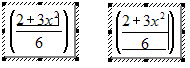
Pay attention to where the flashing cursor is located before adding a new symbol from the toolbar. The MS Equation cursor has a vertical component and a horizontal component. The horizontal component underlines the portion of the equation you are currently working on. In the example below, the left image indicates that you are working only on the numerator of the fraction. However, the right image indicates that you would still be working inside the parentheses, but your entry would be in relation to the entire fraction.
I took my time and produced the following:
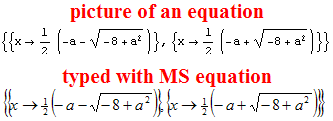
Pretty close. I am not enough of a mathematician to know if the crowding that I see in the MS Equation result is enough to cause confusion or not. However, it does not look esthetically pleasing to me, so I went back to try to change it.
Double-clicking on the equation will bring up the MS Equation Editor toolbar, and the work area. I put my cursor exactly where I wanted to add a space, hit the spacebar, and ... nothing happened! Apparently that's not how to add a space. The next step is to go to the Help menu.
If you see the Equation toolbar and the work area, go to the Help menu and select Equation Editor Help Topics .
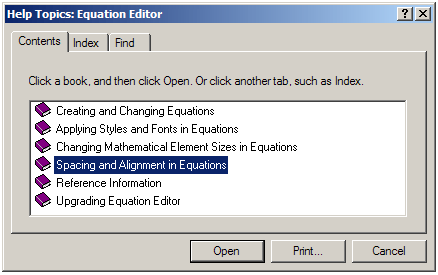
I found exactly what I was looking for in the Spacing and Alignment section.
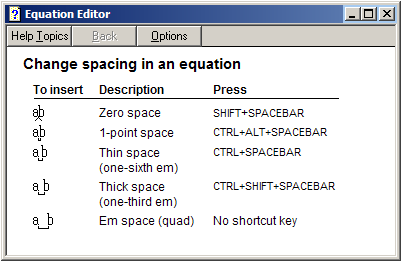
Ah! Much better
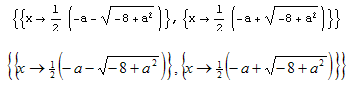
Your turn! Using what you learned above, use MS Equation to duplicate the more complicated equation you see below.

Need help? Want to brag on how well you did? Either way, send email to Bill . Email information below. If you are bragging, attach a copy of the word document you produced.


Internet4classrooms is a collaborative effort by
Susan Brooks and Bill Byles.


advertisement
advertisement
Use of this Web site constitutes acceptance of our Terms of Service and Privacy Policy.