| Sign Up For Our Newsletter |

| Sign Up For Our Newsletter |


Actions Buttons on a Slide Show
A common use of PowerPoint slide shows is for mouse clicks carry one straight through a slide show from beginning to end. The purpose of this tutorial is to show how to make a slide show non-linear . We shall make buttons to navigate back and forth within a PowerPoint slide show, and make a button which will lead to a page on the Internet.
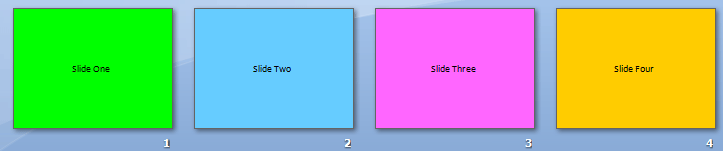
Step 1- Before any buttons are created, make a simple four-slide show. Use the Title Only layout and move the title to the middle of the slide. Place a title on each slide corresponding to the number of the slide (Slide One, Slide Two...). Give each slide background a different color.
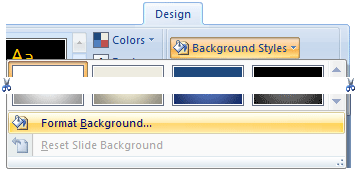
Tips on coloring Slide Background - Click on the Design tab of the PowerPoint ribbon. At the far right end of the tab you will see the Background area. Click on Background Styles and select Format Background .
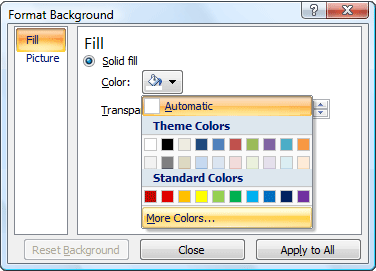
Solid Fill , the default selection, is what we will use. Click on the down arrow to the right of the paint bucket to the right of the word Color to see available colors. If you do not like the theme colors, select More Colors at the bottom of the pop-up window.
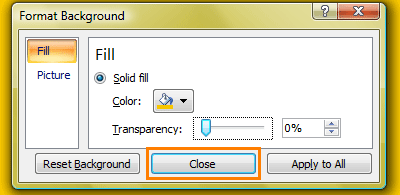
At this point, two things are different in PowerPoint 2007 regarding selecting background color. (1) Default Transparency is set to 100%. In other words, the color will not show up, it will be 100% transparent. To see the color you must drag the slide to the left, decreasing transparency. (2) In older versions of PowerPoint there were two apply choices; Apply and Apply to All . In PowerPoint 2007 the Close option produces the effect of applying the selected color to a single slide.
Our slide show is ready for action buttons to be inserted on the slides. Action Buttons allow you to jump to some specific point in the slide show, or to cause some other action.
Step 2 - Save your show. Buttons rely on hyperlinks, and hyperlinks require a path. Your show is to be saved so a location can be specified.
Step 3 - Select Normal view for slide one so the slide can be edited. We are going to add a button in the bottom right corner of slide one to allow us to jump to slide Two. Action buttons (or other objects) can be added from three areas of the PowerPoint ribbon.
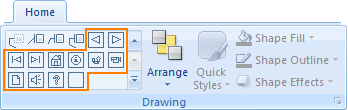
Home Tab - Near the right edge of the Home tab you will find the Drawing area. On the left side of the Drawing area you will find a large list of ready made shapes. Use the scroll arrow to move to the bottom of the list of objects where you will find the Action Buttons (outlines in orange in the image below).
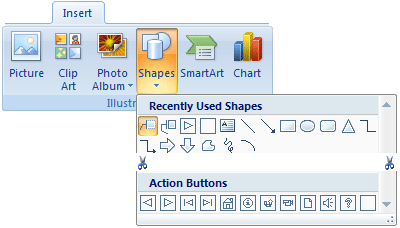
Insert Tab - In the Illustrations area of the Insert tab you will find a button named Shapes . Click on the button to see a large list of shapes (truncated in the image below). The bottom row of shapes is where you will find the Action Buttons .
Insert Tab - A shape, image, or selected text can be associated with an action. After you have used one of the pre-drawn Action Buttons from one of the two areas above, experiment by associating an action with some other object on a slide. Note: Unless an object is selected, the Action tab, located in the Links area, will be grayed out.

Step 4 - Select the button which has a triangle pointing to the right. After selecting an action button, your mouse cursor turns into a cross hair shape. Move the cursor about an inch or two from the bottom right corner of the slide. Click, keep the mouse button depressed, and then drag down and to the right to draw a button.
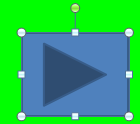
Step 5 - As soon as you finish drawing the button (by letting go of the mouse button) an Action Settings pop-up window will be displayed. If you have selected the Forward or Next button, the default setting will be to go to the next slide by mouse click. Click OK to accept this setting. From the settings window below (shortened for this image) you could select Mouse Over, or click on the down arrow in the Next Slide box and choose another action. For this show, select the default setting.
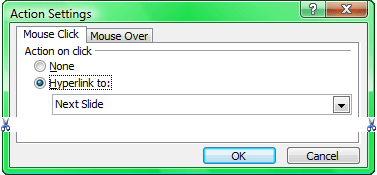
Step 6 - Select slide Two. Repeat the procedure to create a button to the next slide. Make this button act also on a mouse click, just like the first one you made. Also create a button in the bottom left corner of slide Two to go back to the first slide. For this button, select the Mouse Over tab. Read the pop-up window carefully. Even though you have chosen the Back button, you must select Previous Slide from the pull down menu.
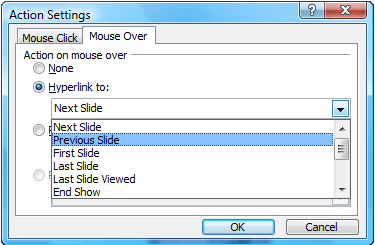
"What's that you say? Your buttons don't work?" Be patient, buttons only work while you are showing your slide show, not while editing.
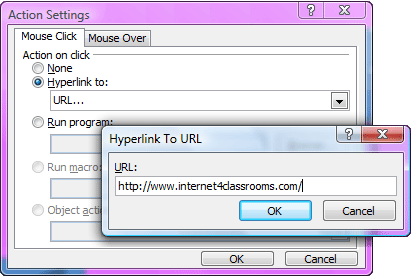
Step 7 - Select slide Three and put the same two buttons at the bottom of the slide. After you have completed those buttons, add a third button in the middle at the top of the slide. This will be a hyperlink to an Internet page. From the pull down menu in the Hyperlink to: box, select URL. A Hyperlink to URL dialog box pops up. Paste, or type a URL into the box. I have suggested one for you: http://www.internet4classrooms.com/index.htm Copy this URL to paste into the Hyperlink to URL dialog box. Click OK.
Step 8 - Select slide Four. We will add only one button to slide Four. In the middle of the slide, above the "Four," insert a button back to the first slide. Choose the button with a house on it, as a link to the Home slide. Make this a Mouse Over button, so clicking is not required. Your show should be complete.
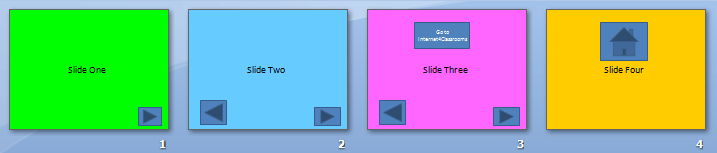
Download the show produced from this tutorial [ Office 2007 file ].
If your PowerPoint is older than Office 2007, download this show .Note: After trying this show I discovered that the mouseover command happens so fast that the only way to go from slide Three to slide Two, is to move one of the buttons at the left corner. If you do not, the mouseover command is executed so rapidly that you go back from Three to Two to One without seeing slide Two.

Internet4classrooms is a collaborative effort by
Susan Brooks and Bill Byles.


advertisement
advertisement
Use of this Web site constitutes acceptance of our Terms of Service and Privacy Policy.