| Sign Up For Our Newsletter |

| Sign Up For Our Newsletter |

Animating text
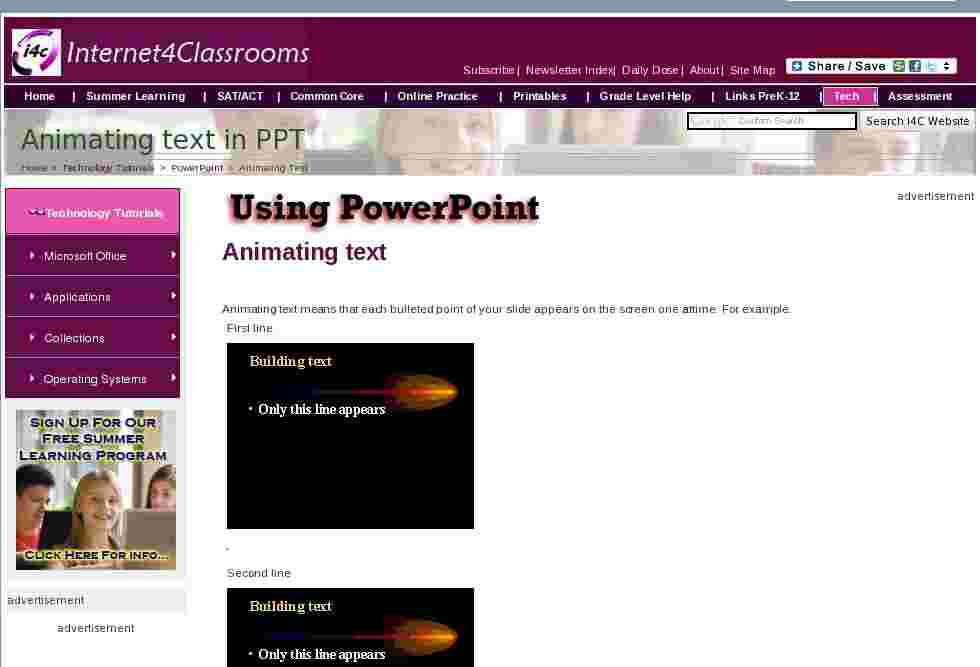
Animating text means that each bulleted point of your slide appears on the screen one at a time. For example:
First line
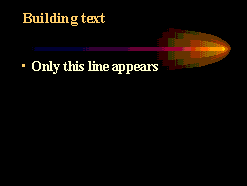
Second line 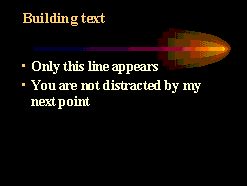
Third line 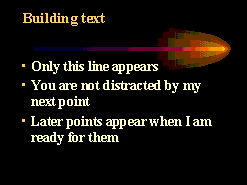
Fourth line 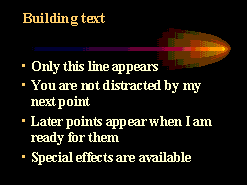
How to create a simple animation
Construct the slide. Remember the 6 x 6 rule; "Avoid more than six lines of text, or six words per line." Change to slide sorter view. Select the slide you wish to build. Select the animation effect from the menu at the top of this page.

If you have not already chosen an effect you will see "No Effect" where you see "Fly From Left" above. Click on the down arrow to the right and select an effect.
Another rule to remember is the "Run Over Rule." Avoid having text run over other text on the way to its final resting place.
Click on the Slide Show button
to see this effect in action in your slide presentation.

How to create a complex animation
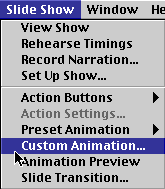
Construct the slide. While still in Slide view, go to the Slide Show menu and select Custom Animation.
The following window will be displayed:
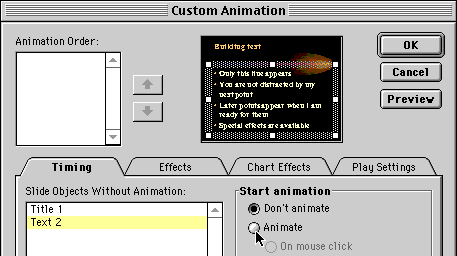
Highlight Text 2, select Animate, and click on the Effects tab.
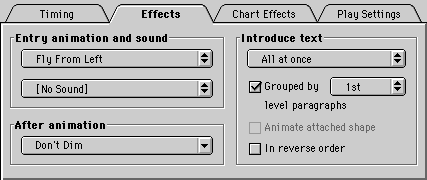
- Entry animation and sound - Click on the name of the effect and you will see the list of effects available. The same is true with the sound. Caution! This sound will play as each element is presented. Some of the sounds sound interesting the first time, but get tiresome with repetition.
- After animation - Dimming means changing the color of the previous points so the new point presented will stand out. You may also choose to hide the previous points so that only your new point is displayed.
- Introduce text - You may introduce the text in one of three ways.
- All at once - This shows the entire line of text, all at once. For most presentations this will be the preferred setting.
- One word at a time - Each word that you typed shows up one at a time. If you are doing a presentation for children this might be fun for one slide. I can not imagine sitting through a presentation where this effect is used on each slide, especially with accompanying sound.
- One letter at a time - Yikes ! Why would you want to? If you have a really good use for this effect please send me Email and share it with me. To see uses others have suggested, click here .
Before you leave the Custom Animation window, click on the Preview button to see, and hear, what your effect will look, and sound, like.
Caution : Many new users of PowerPoint become enamored with all of the "bells and whistles" which they can easily include in their slide show. As much fun as those sounds and animations can be, remember the purpose of a PowerPoint slide show is to communicate some important information. If sounds fit naturally in the lesson, include them. For example, in a show about lions, the roar of a lion is appropriate. However, sound, just for the sake of sound, should not be included in your show. Studies show that the more "bells and whistles" you place into a show, the more likely it is that your audience will remember only the glitz.
See how to animate a chart
Go to Creating transitions between slides
Go Back to Using PowerPoint for presentations

Internet4classrooms is a collaborative effort by
Susan Brooks and Bill Byles.


advertisement
advertisement
Use of this Web site constitutes acceptance of our Terms of Service and Privacy Policy.