| Sign Up For Our Newsletter |

| Sign Up For Our Newsletter |

File, Edit, and View menu items
Macintosh version
The most commonly used items from the File, Edit and View menus will be explained. A quiz will follow
File menu
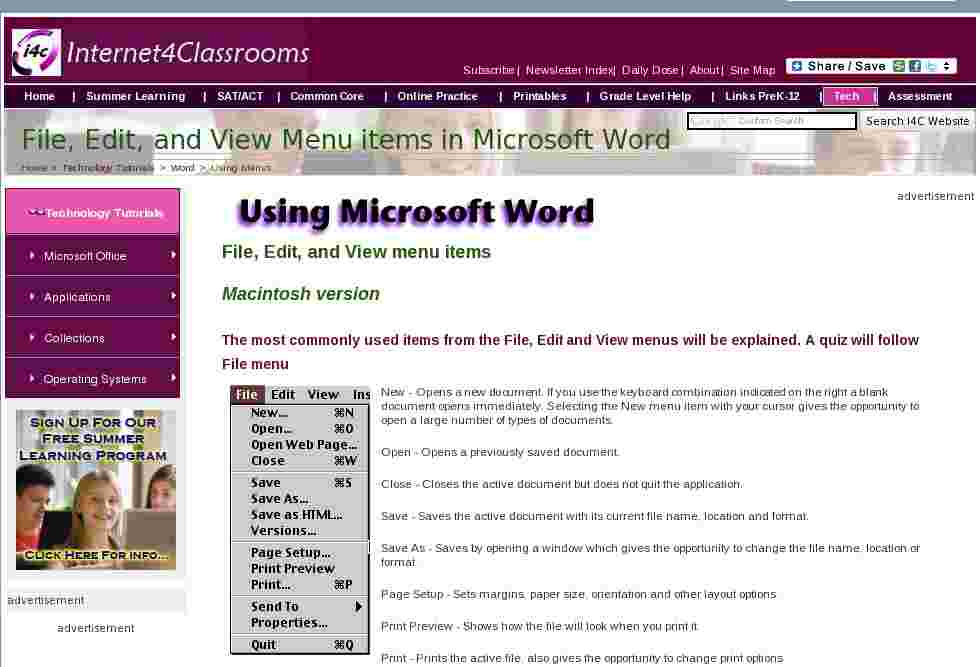
New - Opens a new document. If you use the keyboard combination indicated on the right a blank document opens immediately. Selecting the New menu item with your cursor gives the opportunity to open a large number of types of documents.
Open - Opens a previously saved document.
Close - Closes the active document but does not quit the application.
Save - Saves the active document with its current file name, location and format.
Save As - Saves by opening a window which gives the opportunity to change the file name, location or format.
Page Setup - Sets margins, paper size, orientation and other layout options.
Print Preview - Shows how the file will look when you print it.
Print - Prints the active file, also gives the opportunity to change print options
Quit - Closes Microsoft Word.
Edit menu
Undo ... - The actual entry of this item will depend on what you did last. In my example I had typed, so that was displayed. This selection can be repeated several times.

Repeat ...- After an action has been undone, it can be reinstated in the document.
Cut - Removes the selection from the active document and places it on the clipboard.
Copy - Copies the selection to the clipboard
Paste - Inserts the contents of the clipboard at the insertion point (cursor) or whatever is selected.
Clear - Deletes the selected object or text, but does not place it on the clipboard.
Select All - Selects all text and graphics in the active window.
Find - Searches for specified text in the active document
Replace - Searches for and replaces specified text and formatting.
View menu

Normal - The default document view for most word processing tasks.
Page Layout - An editing view that displays your document as it will look when printed. This view takes more system memory and scrolling may be slow.
Toolbars - Displays or hides toolbars. The right pointing arrow indicates a list of toolbars. To add one slide down to the name of the toolbar and click to select.
Ruler - Displays or hides horizontal and vertical rulers at the top and left side of the document.
Header and Footer - Adds or changes the text that is displayed at the top or bottom of every page of the document
Full Screen - Hides most screen elements so you can see more of your document
Zoom - Controls how large, or small, the current document appears on the screen.
This quiz is available without the tables above
In the Table below, select which menu you would use to perform the stated action.
2. A document was saved to your disk and you want to open it. Which menu do you select?
x
3. The Formatting toolbar has been removed and you want to add it back to your window. Which menu do you select?
x
4. You have selected a line of text that you want to remove from the document. Which menu do you select?
x
5. You are preparing a certificate and want to turn the page to landscape orientation. Which menu do you select?
x
6. Rulers are missing from the top and side of the document and you want to display them on the screen. Which menu do you select?
x
7. Carriage returns have placed too many paragraph marks in your document and you want to remove all of them. Which menu do you select?
x
8. You have been working on a document and now want to save it with a different name. Which menu do you select?
x
9. Students have produced a report and they want to place "Group 4, Ms. Smith's Class" at the top of each page. Which menu do you select?
x
10. You have finished for the day and want to close Microsoft Word. Which menu do you select?
x
Go to Using Word menu items, part 2
Go back to Using Microsoft Word to Produce Classroom Documents

Internet4classrooms is a collaborative effort by
Susan Brooks and Bill Byles.


advertisement
advertisement
Use of this Web site constitutes acceptance of our Terms of Service and Privacy Policy.